
Debit Cards

Ultimate convenience, enhanced security
Your West Gate Bank® Debit Card will become a daily resource you can use for purchases, withdrawals, deposits and transfer. You'll receive one within 7-10 business days of opening a West Gate Bank checking account, so you can have instant access to your money.
- Tap to Pay now available upon request or issue of a new card
- Make unlimited free withdrawals at all West Gate Bank and non-West Gate Bank ATMs^ (withdraw up to $1,250 each day)
- Add your West Gate Bank Debit Card to your phone's mobile wallet for quicker, more secure transactions
- Set up card controls to turn your card off when you're not using it and to create rules about how your card can be used
- EMV chip technology strengthens security for in-store purchases at chip-enabled terminals
- Make purchases totaling up to $2,500 each day
- Put a travel notice on your card to ensure uninterrupted service during your trip
Choose from these designs:
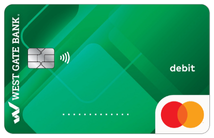.png)
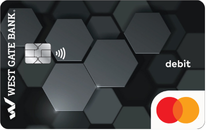.png)
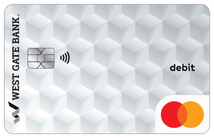.png)
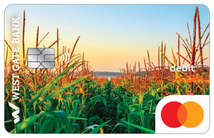
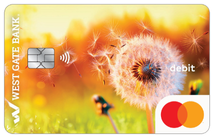.png)
^West Gate Bank will not charge a fee for using a non-West Gate Bank ATM. The owner of the ATM, however, may charge a fee.
To request a debit card, contact us or visit your nearest branch.
Smarter Payments, Fewer Hassles
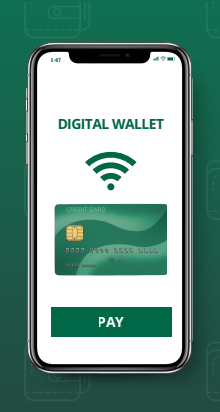
Your West Gate Bank debit card is already designed for convenience. Your digital wallet makes it even better. Add your debit card to your digital wallet and keep payments effortless.
- Open the West Gate Bank mobile app.
- Scroll down to the Card Management section.
- Choose your West Gate Bank debit card that you would like to enroll in the mobile wallet.
- Once the card is open in the app, choose the Add to [Your Wallet Name]. This will differ depending on your phone.
- High risk authentication will be prompted – enter code and choose Verify.
- Choose the option to add the card to whichever wallet was selected.
- From there, the phone’s wallet will open and the prompts should be followed.
- Once your West Gate Bank debit card is added to your digital wallet, select the card as your default card for quicker buying experience.
Download the West Gate Bank Mobile Banking App


Important reminders:
- PINs cannot be used until the physical card shows up and is activated. If a merchant asks for your PIN, bypass this option.
- Once you receive the physical card, you can still use your digital wallet AND start using your PIN with it.


